---
prev:
text: '项目创建与初始化'
link: './02-project-setup'
next:
text: '引入 Model 重构'
link: './04-model-refactor'
---
# 第 3 章:基础计数器实现
在本章中,我们将创建一个简单的计数器应用。首先用最直接的方式实现功能,然后分析这种实现方式的问题,为后续的架构优化做准备。
## 创建 UI 场景
### 1. 创建主场景
1. 在 Godot 编辑器中,点击 **场景 → 新建场景**
2. 选择 **用户界面** 作为根节点类型(Control)
3. 将根节点重命名为 `App`
4. 保存场景为 `scenes/App.tscn`
### 2. 搭建 UI 布局
添加以下节点结构:
```
App (Control)
├── CenterContainer (CenterContainer)
│ └── VBoxContainer (VBoxContainer)
│ ├── Label (Label) - 唯一名称:%Label
│ ├── HBoxContainer (HBoxContainer)
│ │ ├── SubButton (Button) - 唯一名称:%SubButton
│ │ └── AddButton (Button) - 唯一名称:%AddButton
```
::: tip 唯一名称的作用
在 Godot 中,带 `%` 前缀的唯一名称可以让我们在代码中更方便地访问节点:
```csharp
GetNode("%Label") // 无论节点在哪个层级都能找到
```
:::
### 3. 配置节点属性
**App (Control)**
- **布局**:Anchor Preset → Full Rect
**CenterContainer**
- **布局**:Anchor Preset → Full Rect
**VBoxContainer**
- **主题覆盖 → 常量 → Separation**:20
**Label (%Label)**
- **文本**:Count: 0
- **水平对齐**:Center
- **主题覆盖 → 字体大小**:32
**SubButton (%SubButton)**
- **文本**:-
- **最小尺寸**:宽度 60, 高度 40
**AddButton (%AddButton)**
- **文本**:+
- **最小尺寸**:宽度 60, 高度 40
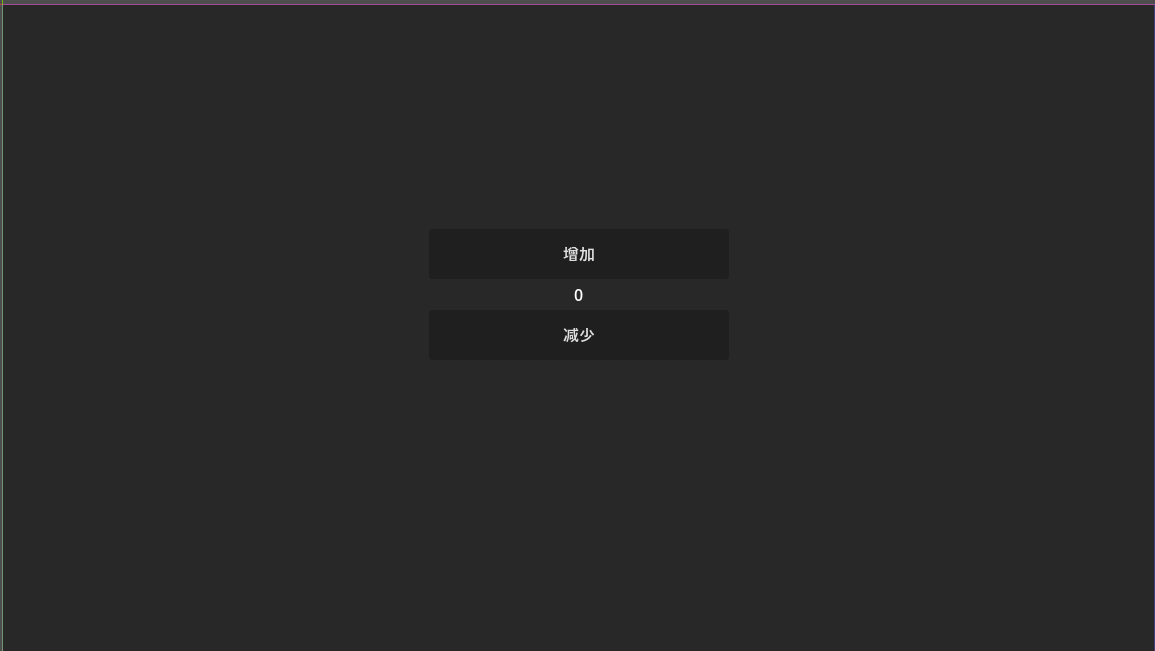
### 4. 最终效果
完成后的界面应该如下:
## 实现基础功能
### 1. 创建 App 脚本
右键点击 `App` 节点,选择 **附加脚本**:
- **语言**:C#
- **模板**:Node: Basic Script
- **路径**:`scripts/app/App.cs`
点击 **创建**。
### 2. 编写代码
编辑 `App.cs`,实现基础功能:
```csharp
using Godot;
namespace MyGFrameworkGame.scripts.app;
///
/// 计数器应用的主控制器
///
public partial class App : Control
{
///
/// 获取 Add 按钮节点
///
private Button AddButton => GetNode